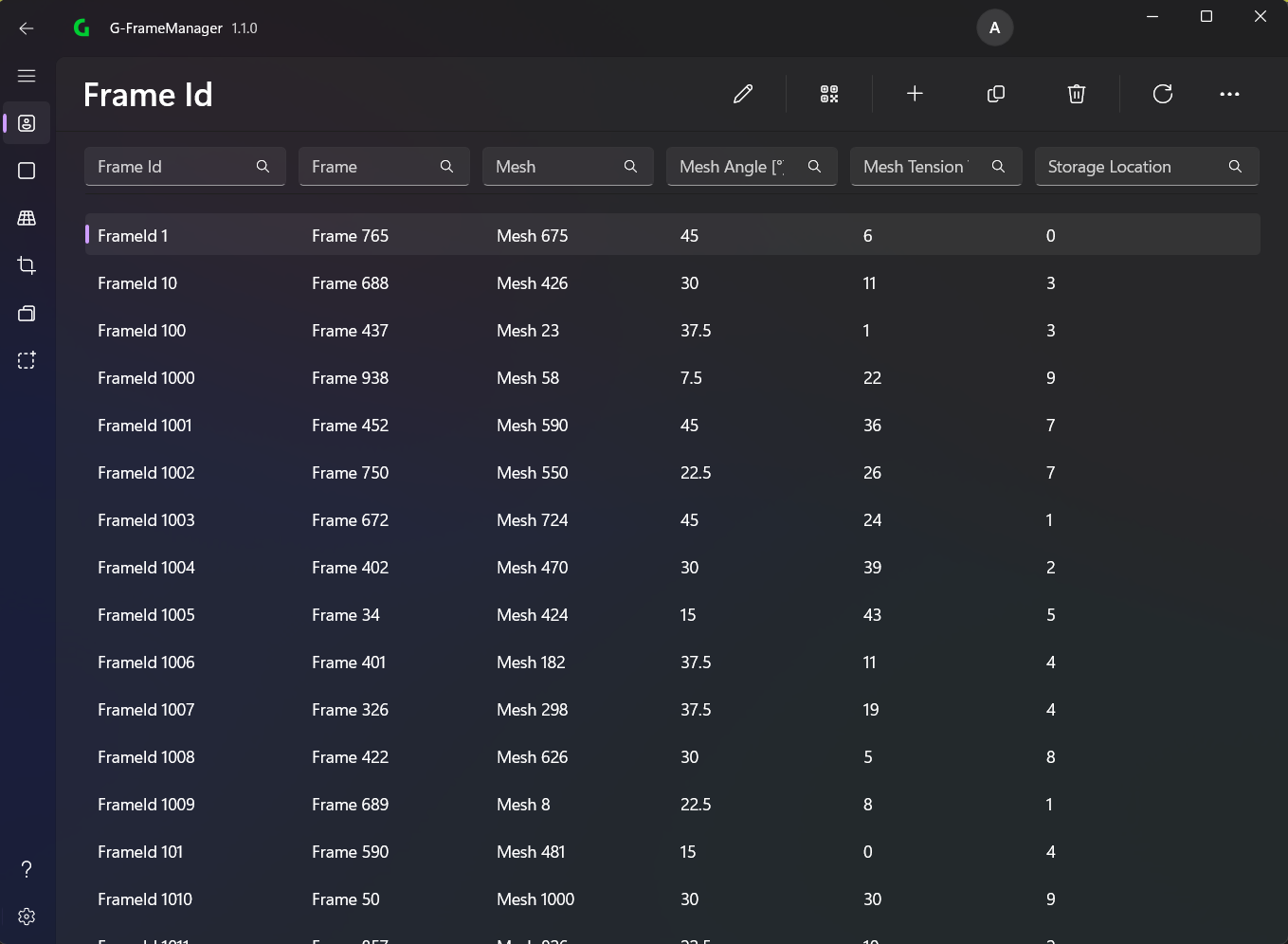
FrameId Page

💡
Data can be imported/exported via CSV files
In the menu bar you can select the different options (from left to right):
- Edit (can also be done by double-clicking on an element or Ctrl + E)
- Generate QR code (Ctrl + E)
- Add (Ctrl + A)
- Duplicate (Ctrl + D)
- Delete (DEL)
- Refresh (F5)
Add/Edit FrameId
FrameId
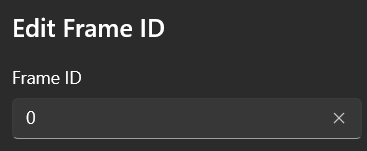
Here you can specify the FrameId (this must be unique)
Frame
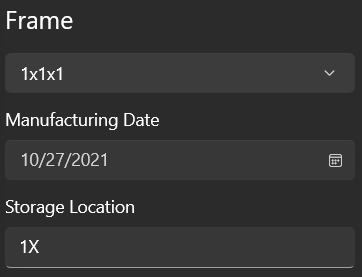
Next, a frame can be assigned to this FrameId.
- Only the options that were added on the Frame Page are available for selection.
Then you can assign a production date and a storage location for the frame.
ℹ️
Storage Location is only available if this has been activated in the settings
Mesh
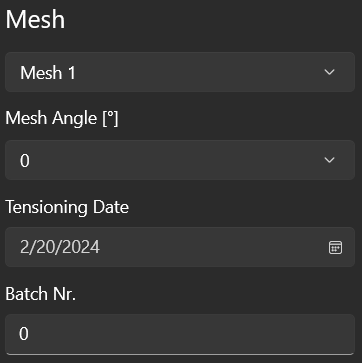
Next, a mesh can be assigned to this FrameId.
- Only the options that were added on the Mesh Page are available for selection.
Then you can set a mesh angle.
- Only the options that were added on the Mesh Angle Page are available for selection.
Then you can set a tensioning date and a batch number.
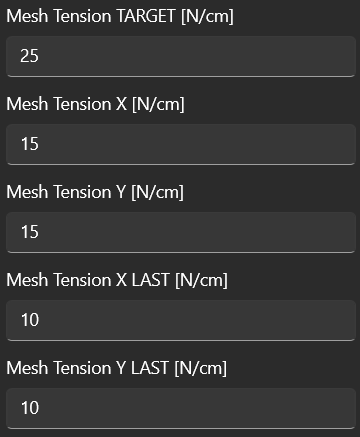
The next fields allow you to set the mesh tensions.
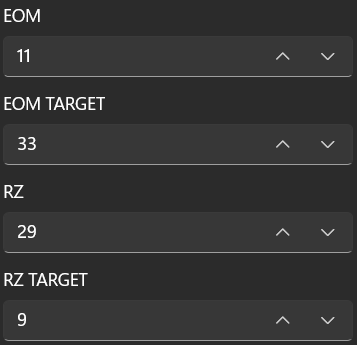
In these fields you can set EOM and RZ.
Program
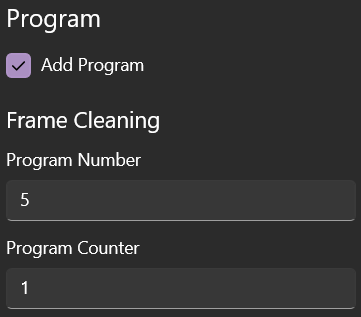
Here you can activate the Program option to add a program to the frame. A program will be created for each process that has been activated in the settings.
ℹ️
The Program Counter option is only displayed if enabled in the settings
Customized
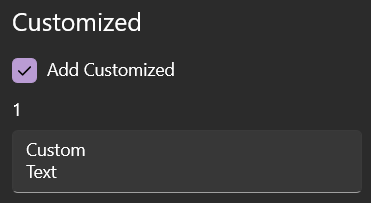
Here you can activate the Customized option to display custom fields.
ℹ️
Only those fields are displayed that have a name defined in the settings